Home Office Guides
Desk Monitor Buying Guide
How to choose a home office monitor: resolution, refresh rate, panel type, USB-C docking, desk size, and price bands.

Buying Guide
The monitor on your desk sets how much you can see at once, how sharp text feels, and whether video calls look tired or crisp. For a home office, the right panel is less about gaming bragging rights and more about pixel density at your seating distance, enough height for browser chrome and Slack, and ports that match your laptop. This guide walks through size, resolution, refresh rate, panel type, and connectivity so you can shop the category confidently — then jump to our ranked picks when you are ready to buy.
Top questions
- What makes a good desk monitor for home office work?
- Resolution and pixel density — 1080p, 1440p, 4K, or ultrawide?
- Refresh rate and everyday motion
- IPS, VA, OLED — which panel fits your room?
- Size, curve, and desk ergonomics
- USB-C, HDMI, and one-cable docking
- Top-ranked models worth considering
- How much should you spend?
- What to read next
What makes a good desk monitor for home office work?
A strong home office monitor does four jobs without drama: keeps text sharp at your normal viewing distance, gives you enough vertical space for toolbars and tabs, stays comfortable through long spreadsheet or writing sessions, and connects to your laptop with minimal cable clutter.
Text clarity is the daily test. Spreadsheets, docs, and IDE windows punish low pixel density. A 27-inch 1080p screen can look fine from arm’s length; the same resolution on a 32-inch panel can look soft unless you sit farther back. If you live in email and documents, prioritize sharpness over peak brightness.
Workspace geometry matters as much as resolution. A 34-inch ultrawide (21:9) replaces two smaller monitors for many people — one timeline or code editor, one inbox — without a center bezel. A single 27-inch or 32-inch 16:9 panel is simpler to mount and photograph for video calls.
Comfort features — low blue light modes, flicker-free backlights, and a stand with real height adjustment — reduce fatigue more than a marginal spec bump you will never notice. Plan for VESA mounting if you use a monitor arm; it frees desk depth for keyboards and notebooks.
Honest fit for your gear closes the loop. A 5K ultrawide is wasted if your laptop GPU struggles to drive it; a budget FHD panel can feel excellent if your desk is shallow and your workload is browser-first.
Resolution and pixel density — 1080p, 1440p, 4K, or ultrawide?
Resolution is the number of pixels on the panel; pixel density is how tightly they are packed. For desk work, density drives how crisp fonts look.
| Format | Typical sizes | Best for | Trade-off |
|---|---|---|---|
| 1080p (FHD) | 24–27″ | Budget setups, shallow desks, secondary displays | Can look soft above 27″ at close range |
| 1440p (QHD) | 27–34″ ultrawide | Sweet spot for one-monitor offices | Mid-tier pricing; check Mac/PC scaling |
| 4K (UHD) | 27–32″, some 43″ desks | Photo/video, dense spreadsheets, one-cable MacBooks | Needs GPU headroom; UI scaling tuning |
| 5K / ultrawide 5K2K | 40″ class | Dual-window pros, finance, dev with side tools | Premium price, deep desk, strong GPU |
Ultrawide (21:9 or wider) panels such as 3440×1440 or 3840×1600 give you side-by-side windows without bezels. They shine for research tabs beside a doc, or color grading with scopes pinned to the edge. Standard 16:9 is easier for centered video calls and symmetric desk photos.
Higher bars mean more pixels for UI chrome and text — ultrawide adds width more than height.
Refresh rate and everyday motion
Refresh rate (Hz) is how many times per second the image redraws. Office users benefit more than they expect: 100Hz and 120Hz make scrolling, dragging windows, and cursor movement feel smoother than classic 60Hz, with modest GPU cost on modern laptops.
Gaming-first panels push 144Hz–240Hz. For spreadsheets and video calls, anything at or above 100Hz is a nice quality-of-life upgrade; you do not need esports tiers unless you also game on the same desk.
| Refresh rate | Feel in daily work |
|---|---|
| 60Hz | Fine for static tasks; scrolling can feel slightly sticky |
| 75–100Hz | Noticeably smoother web browsing and window drags |
| 120Hz+ | Best for mixed work + gaming; pair with a capable GPU |
Stepping from 60Hz to 100Hz is the biggest everyday upgrade for most home offices.
IPS, VA, OLED — which panel fits your room?
IPS is the default for office monitors: stable colors when you shift in your chair, wide viewing angles for shared screen reviews, and accurate enough whites for documents. Most QHD and 4K desk panels are IPS variants.
VA often appears on curved budget and mid models. It delivers deeper blacks and stronger contrast for movies, but can show black smear when scrolling dark UI quickly. Fine for mixed media; less ideal if you live in dark-mode IDEs all day.
OLED (including QD-OLED on premium creative panels) offers perfect blacks, high contrast, and punchy HDR — excellent for color-sensitive work and video. Burn-in risk is low for typical office use but still worth enabling sleep and avoiding static HUDs 24/7 on the same pixels.
Size, curve, and desk ergonomics
24–27 inches fits shallow desks and keeps 1080p or 1440p sharp. 32 inches is the popular upgrade for one-monitor setups — immersive without dominating the room. 34–38 inch ultrawides need depth (often 24–30″ from your eyes to the panel) and width on the desk; measure before you buy.
Curved panels (1800R–2300R) wrap the image slightly. Many people like the focus for single-monitor setups; others prefer flat panels for straight lines in design work. Curve is preference, not a quality score.
Ergonomics checklist:
- Top of screen at or slightly below eye level
- Arm’s length viewing distance for 27–32″; push ultrawides back a few inches
- Monitor arm with VESA 75×75 or 100×100 if the stock stand is too low
- Webcam placement — ultrawides may need a clip-on cam above center, not on a thick bezel
USB-C, HDMI, and one-cable docking
Cable strategy saves hours of desk frustration:
- USB-C with DisplayPort Alt Mode — One cable for video + data on many laptops; look for 65W–90W power delivery if you want to charge a MacBook or ultrabook through the monitor.
- HDMI 2.0/2.1 — Universal for desktops, docks, and game consoles; carry a spare certified cable for 4K60.
- DisplayPort — Common on PCs and discrete GPUs; best for high refresh QHD/4K.
- Built-in USB hub — Handy for keyboards and receivers; not a replacement for a full dock if you run many drives.
- Smart monitors — Built-in streaming OS can replace a stick on a secondary desk, but check app support and Wi‑Fi stability before you drop a PC-less setup.
If you hot-desk between a company laptop and a personal tower, favor a monitor with two HDMI inputs + USB-C so switching sources is one button, not a cable swap.
Top-ranked models worth considering
These are some of the top-rated, well-reviewed desk monitors in our catalog — useful examples while you learn what to shop for. This is not our full ranked list. See all 33 monitors in our lineup or see our roundup when you are ready to compare ten curated picks.
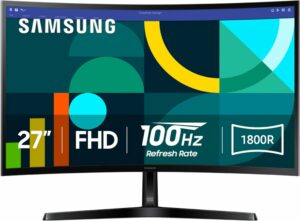
Samsung LS27D366GANXZA 27-Inch FHD 1800R Curved Monitor 100Hz
27-inch curved monitor with a 100Hz refresh rate for smooth visuals.
Samsung’s 27-inch Essential S3 monitor delivers a genuinely immersive experience for the price. The 1800R curve is its main event. It wraps around your vision just enough to pull you into the content without feeling gimmicky. This subtle wrap minimizes peripheral distractions, making it easier to focus during work or a movie.
The 100Hz refresh rate is the practical upgrade over standard 60Hz displays. Scrolling is noticeably smoother, and casual gaming feels more fluid without the need for high-end hardware. Samsung’s Game Mode optimizes contrast on the fly, which helps spot details in darker scenes. The Advanced Eye Comfort features are a legitimate benefit for long sessions, reducing strain without washing out the FHD picture.
At 27 inches, the 1920×1080 resolution is a trade-off. Pixel density isn’t as sharp as a 1440p display, so text and fine details won’t be as crisp if you sit very close. For general productivity, media, and casual gaming, however, the combination of curve, smoothness, and Samsung’s reliable performance creates a compelling package. It connects simply via HDMI or the legacy D-sub port.
HomeGear editors evaluate and recommend products independently. Purchases through affiliate links may earn us a commission, which helps support our editorial work.
Brand: Samsung
Where to find it: Amazon
Specifications
▼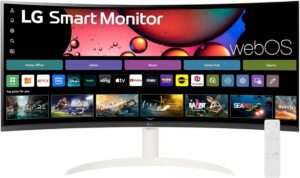
LG 34SR60QC-W 34-Inch QHD Curved Smart Monitor
34-inch curved QHD smart monitor for a streamlined, immersive workspace.
LG’s smart monitors have carved out a unique niche, and the 34SR60QC-W is a compelling example. It’s a 34-inch curved UltraWide display that functions independently, powered by the same webOS platform found in their TVs. This means you can stream Netflix, use AirPlay 2, or browse the web without ever connecting a computer. It’s a genuinely useful hybrid for a home office or a secondary space.
The 3440×1440 QHD resolution on a 21:9 curved panel provides ample screen real estate for multitasking. You can comfortably have two full windows side-by-side. The 100Hz refresh rate makes everyday scrolling and casual gaming feel noticeably smoother than a standard 60Hz office monitor. Built-in speakers, Bluetooth for headphones, and two USB 3.0 ports round out a clean, cable-managed setup. Picture quality is solid for the category, with HDR10 support adding some depth to compatible content.
For pure productivity, dedicated monitors offer higher refresh rates or color accuracy. The built-in audio is functional but thin, so a soundbar or headphones are recommended for serious viewing. As a streamlined, all-in-one hub for work and entertainment, however, it delivers a uniquely convenient experience that simplifies your desk.
Brand: LG
Where to find it: Amazon
Specifications
▼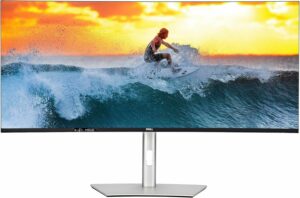
Dell U4025QW 40-Inch 5K2K Curved Monitor
A massive 40-inch curved 5K2K ultrawide that's a productivity powerhouse.
Dell’s Ultrasharp line has long been the reference for serious, color-accurate work. The U4025QW takes that legacy and stretches it into an immersive 40-inch canvas that changes how you manage multiple applications. The 5120 x 2160 5K2K resolution on a curved panel provides the sharpness of a dual 4K setup without the distracting bezel in the middle.
You get the effective screen real estate of two 27-inch QHD monitors side-by-side. The curve feels natural, pulling the far edges of the display comfortably into your periphery. For productivity, this means you can have a full-width code editor or timeline open with reference materials and communication apps living permanently on the sides without feeling cramped. The 120Hz refresh rate is a genuine upgrade for daily use, making scrolling and cursor movement noticeably smoother than on standard 60Hz office monitors.
It requires a powerful graphics card to drive at its full resolution and refresh rate, which is a significant consideration. The integrated Thunderbolt 4 hub with 140W charging, however, simplifies cable management to a single connection for a laptop. This is a premium investment that pays off by eliminating desktop clutter and fundamentally expanding your workflow.
Brand: Dell
Where to find it: Amazon
Specifications
▼
How much should you spend?
Home office monitors cluster into clear tiers. Prices move with sales; use bands to set expectations before you filter listings.
| Price band | What you typically get | Best for |
|---|---|---|
| Under $200 | 24–27″ FHD, 75–100Hz, basic stand | Students, spare room desks, tight budgets |
| $200–$400 | 27″ QHD or curved 32″ FHD, 100Hz, better ergonomics | Most one-monitor home offices |
| $400–$800 | 34″ ultrawide QHD, 32″ 4K, USB-C with PD | Multitaskers, consultants, devs |
| $800+ | 5K2K ultrawide, OLED pro panels, 40–43″ canvases | Creators, traders, power users |
See our 10 best desk monitors for home office roundup for current models we recommend side by side, or See all 33 monitors in our lineup.
What to read next
How we review desk monitors
We compare the details that matter at a real desk — text sharpness at normal viewing distance, refresh rate for everyday scrolling, port layout for laptops, stand ergonomics, and what buyers say in verified reviews. We line up specs on comparable models in our catalog and editors turn that into plain advice you can use before you buy.
We do not test every monitor in a lab or run instrumented color workflows on each unit. When we link to specific models, those examples come from the same catalog signals and editorial comparison we use for roundups — not paid placement.
Disclaimer
HomeGear Insider publishes buying advice to help you shop smarter. We are not the manufacturer or seller of the products here. Prices, specs, and availability change — double-check the details on the retailer’s site before you order. Installation, warranty, and returns are between you and the seller.




Brutal Paid Advice — The Ice Cream Shop

WALKINGPAD R3H+ 2-in-1 Folding Treadmill 7.5 mph Review for 2026

Concept2 SkiErg SkiErg Only Review for 2026

NordicTrack T Series 10 Treadmill Review for 2026

Weber Genesis S-415 4-Burner Propane Gas Grill Review for 2026

Best Humidifiers 2026: Top 50 Tested & Ranked

20 Best Sous Vide Machines for 2026: Real Picks Worth Buying

Best Dehumidifiers 2026: Top 40 Tested & Ranked

Best 40 Patio Sets: The Most-Bought Picks for 2026

Desk Monitor Buying Guide


-
 Home Comfort & Climate Roundups4 months ago
Best Humidifiers 2026: Top 50 Tested & Ranked
-
 Kitchen & Dining Roundups4 months ago
20 Best Sous Vide Machines for 2026: Real Picks Worth Buying
-
 Home Comfort & Climate Roundups4 months ago
Best Dehumidifiers 2026: Top 40 Tested & Ranked
-
 Outdoor & Garden Roundups7 months ago
Best 40 Patio Sets: The Most-Bought Picks for 2026
-

 Cleaning & Laundry Reviews3 months ago
roborock Saros Z70 Robot Vacuum and Mop, OmniGrip Arm, Review for 2026
-

 Outdoor & Garden Guides4 months ago
Patio Set Buying Guide
-
 Home Office Reviews4 months ago
LG 38WR85QC-W 38-Inch Curved UltraWide WQHD Monitor Review for 2026
-
 Cleaning & Laundry Reviews3 months ago
roborock Saros 10R Robot Vacuum and Mop with Self-Emptying Review for 2026